
How to Livestream with Vimeo
Go live with Vimeo Livestream and give members an exclusive experience.
You can Livestream with Vimeo if you have a Vimeo Advanced account. Lookhu creators receive 10% off of their 1st year of Vimeo Advanced
Set up a Patreon exclusive Livestream with Vimeo
1. While logged in to your Lookhu account, click on Create and then the Post button from the left-hand side
2. Click the Livestream button
3. Click the Use Vimeo button
4. Click the Create a member-only Vimeo Livestream link
5. Authenticate your Vimeo Advanced account or create a new one
6. We’ll direct you to Vimeo’s live video creation flow. Here you can use all of Vimeo’s Livestream features like; Live Q&A, polling, moderation tooling, etc.
7. Select New event to create your live event! Here’s Vimeo’s guide to creating a live event
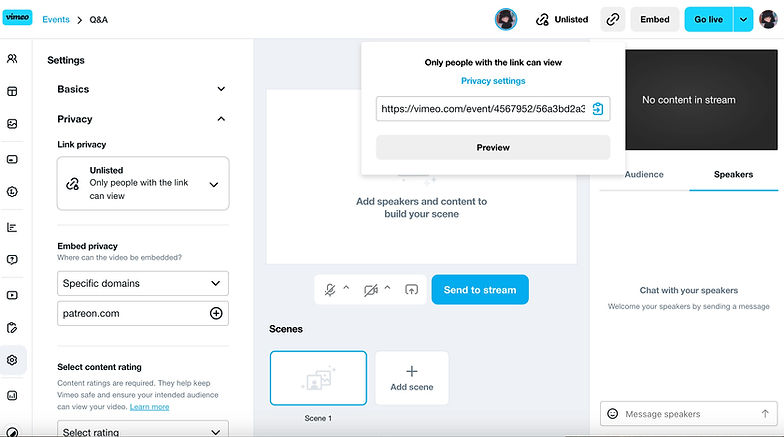
- When creating a live event, select the Link Privacy as Unlisted. This makes it easy and secure for members to access the post
- Once you create your event, you can change the Embed privacy — select Specific domains, and type Lookhu.com domain
8. Copy the Livestream URL from the Share link button at the top right corner
9. Paste the Livestream URL into the textbox of your new post on Lookhu
10. Fill out the rest of your post details like Title, description, and Who can access this post
11. You can add your post to a collection to help members find more of what they’re looking for. You can think of collections as your own library where you can get to organize your work however you want.
12. You can preview your post before publishing by clicking the View button
13. Schedule to publish it later (default setting) or publish it immediately if you’re ready to go live!